tools-resources
Tools for Writers Who Aren't 'Writers'
November 27, 2025
You don't need to be a professional writer to need writing tools. If you send emails, write proposals, or create content — these are for you.
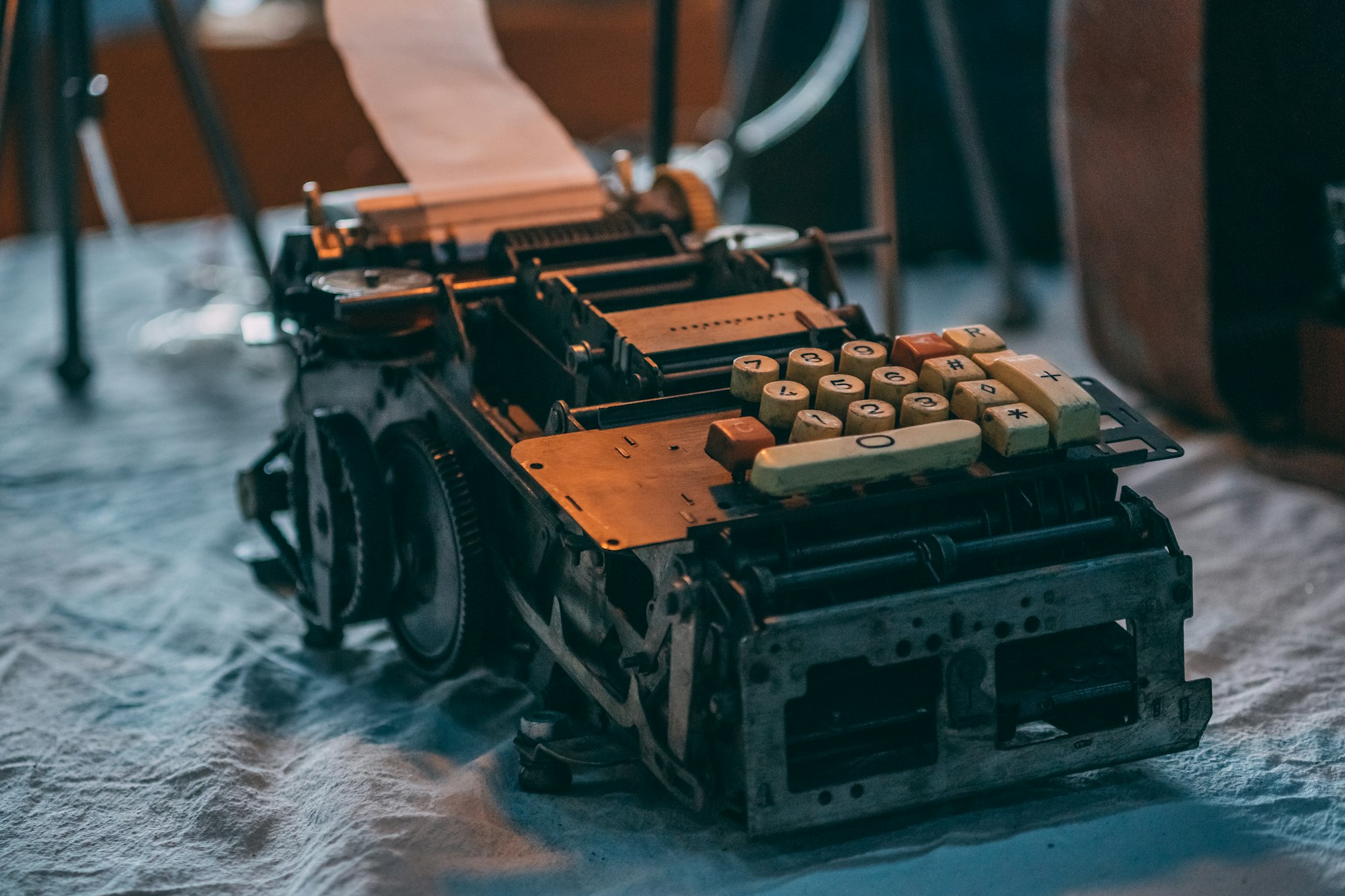
You write every day, but you don’t think of yourself as a “writer.”
Maybe you send emails to clients that actually need to persuade someone. Maybe you write proposals, product descriptions, social media captions, or the occasional blog post about your work. Maybe you’re just tired of your sentences feeling clunky and your grammar checker screaming at you with a thousand red squiggles.
Here’s the thing: you don’t need to be a novelist or a journalist to benefit from writing tools. But you probably don’t need Hemingway Editor, Grammarly, and three other apps either.
The writing tool market is flooded with bloat. Most of it’s either overkill for what you actually do, or it costs money for features you’ll never touch. What you need are tools that get out of your way, let you focus, and actually make your sentences better — without the corporate nag or the subscription juice.
Let me walk you through what actually works for people who write sometimes.
🎯 Stop Distractions First (Before You Polish)
You can’t improve what you can’t focus on. The first step isn’t a grammar tool — it’s removing everything that pulls your attention while you’re trying to write.
Distraction-free editors
iA Writer ($30 one-time, iOS/Mac/Windows)
If you’ve never used a distraction-free editor, this will feel weird at first. No toolbars. No formatting options in your face. Just text on a blank background. But that’s the point. You’re not tweaking fonts every 30 seconds; you’re actually writing.
iA Writer also has features like “Focus Mode” (highlights only the sentence you’re on), syntax highlighting for Markdown, and a library view that keeps your writing organized. It’s minimal, but not boring.
Ulysses ($60/year, Mac/iPad only)
Similar vibe to iA Writer, but with a focus on long-form writing. Better for people working on essays, articles, or anything where you need to manage multiple documents and see them as part of a whole project. The interface is cleaner than most, which means fewer things competing for your brain space.
Free alternative: Google Docs + Dark Reader
You don’t need to pay. Google Docs works fine if you strip away the distraction. Open it in full-screen, hide your browser tabs, maybe use a dark mode extension to reduce eye strain. It’s not glamorous, but it forces you to focus.
The key: pick one tool and stick with it. Switching between editors is just another form of procrastination.
🚀 Grammar and Clarity Without the Nag
Grammarly is useful if you pay for premium ($12/month, $139/year), but even then it’s aggressively noisy. It flags things that don’t matter, suggests rewrites you don’t need, and feels like someone looking over your shoulder with a red pen.
You have better options.
Hemingway Editor (Free + $19.99 one-time)
This one’s designed specifically for clarity, not correctness. It highlights complex sentences, passive voice, weak verbs, and adverbs in different colors. The philosophy is simple: shorter, more active sentences are clearer sentences.
You don’t have to follow its suggestions (many are debatable), but it spots the places where your writing gets tangled. Paste your draft, fix the red and orange highlights, and move on. No subscription nagging. No “upgrade to premium to catch your missing commas.”
The free web version works; the desktop version is better if you want to use it offline.
Google Docs built-in spelling and grammar
Honestly? Google Docs’s default spell-check catches most real errors. Not every style nitpick, but actual mistakes. It’s included, free, and unobtrusive. If you’re already writing in Docs, you’re covered.
Readable.com (Free tier + Premium)
This one grades your writing for readability — average sentence length, vocabulary difficulty, grade level. It won’t fix your sentences for you, but it shows you where you’re being unnecessarily complicated.
Useful for people writing for audiences who don’t have time for fancy prose. Product descriptions, emails, proposals — if you need to be clear above all else, this tool reminds you when you’re not.
⚡ Real Help: Tools That Actually Make You Faster
Spelling and grammar are baseline. The next level is tools that help you think and structure faster.
Claude or ChatGPT for research and outlining
I know, I know. AI writing tools get a bad rap, and for good reason. They generate hollow prose and can’t replace your voice. But they’re genuinely useful for two things:
Finding angles and organizing thoughts. If you’re staring at a blank page on a proposal or blog post, you can ask Claude: “I want to write about X for my audience. What are the main angles people care about?” or “Help me outline this email so it flows better.” You’re not asking it to write; you’re asking it to help you think.
AI writing tools are good at research and structural help — if you use them right.
The trick: use it as a thinking partner, not a writer. Read what it gives you, argue with it, then write what actually matters in your own voice.
Notion or OneNote for ideas (not during drafting)
Before you write, you might need a place to collect thoughts. A research doc. A swipe file of good examples. A list of points you want to make.
Keep your drafting tool separate from your brainstorming tool. If you outline in the same doc where you’re writing, you’ll constantly switch between planning and drafting, which kills momentum.
Use Notion for your research file. Use your distraction-free editor for the actual draft.
🔧 The Email and Proposal Problem
If most of your writing is emails and proposals, you have a different challenge. You need clear, persuasive writing that doesn’t bore people.
The 1% fix
Before you send an important email or proposal, read it out loud. Not silently — actually say the words. You’ll catch awkward phrasing, run-on sentences, and weak moments immediately.
It sounds silly. It’s the most effective thing you can do.
Hemingway for proposals and emails
Paste your draft into Hemingway Editor. Let it highlight the murky bits. Fix them. Done.
If you’re writing proposals that actually matter (ones where the client is deciding between you and someone else), spend 15 minutes on clarity. It pays back instantly.
Template muscle memory
The best emails are the ones you don’t overthink. If you send the same type of email regularly (proposals, follow-ups, onboarding), write one good version and reuse it as a template.
You don’t need a template tool. Save it in your notes. Fill in the blanks each time. Less thinking about structure, more thinking about what actually matters in this situation.
The Bottom Line
You don’t need a fancy toolkit. You need one distraction-free editor, Hemingway Editor, and maybe Claude for thinking. That’s it.
Everything else is noise. The more tools you juggle, the more time you spend managing tools instead of writing. The less writing you actually do, the worse you get at it.
Pick your editor. Use Hemingway for clarity checks. Write in your own voice — not because a tool told you to, but because you think it matters. That’s the whole system.
If you’re looking to get better at creating content more broadly, you might want to check out the tools that help beginners start without breaking the bank. And if you’re curious about when AI actually helps versus when it’s just noise, I wrote about the real uses for AI writing tools.
Write more. Overthink less. Better writing follows.