Tools & Resources
Note-Taking Apps: Choose by Capture, Files, or Projects
Compare four note-taking apps by the job: quick capture, local files, notebooks, or shared projects. Check the exit route before migrating.
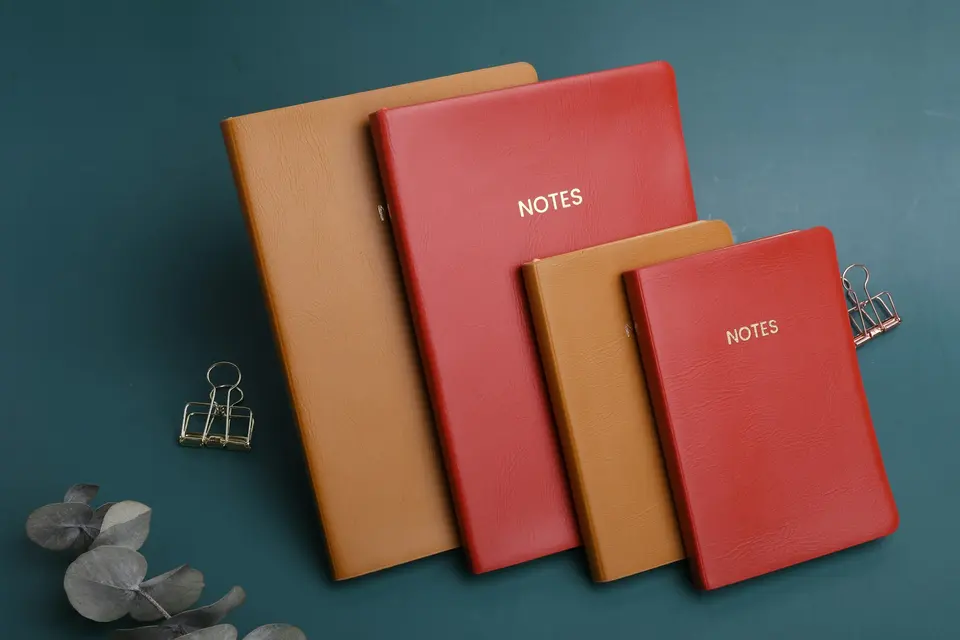
Choose note-taking apps by what the notes need to do. A shopping list, a writing archive, and a shared project tracker are different jobs. Forcing all three into the same beautifully organized dashboard is optional suffering.
Correction: The old title claimed experience from trying many apps. That claim was not verified. This is an AI-generated comparison based on official documentation checked on September 21, 2026. It is not a hands-on ranking or a speed test.
Four note-taking apps for four different jobs
| Your main job | Starting option | Question to settle first |
|---|---|---|
| Capture quick notes on Apple devices | Apple Notes | Does sharing and export fit your other devices? |
| Maintain a local archive of Markdown files | Obsidian | How will you synchronize and back up the folder? |
| Organize notes into notebooks and tags | Joplin | Can you export the notes and attachments you need? |
| Keep shared project information in structured pages | Notion | What needs to work offline, and on which device? |
These are editorial suggestions about fit. The order is not a league table, and none of the apps can decide which notes are worth keeping for you.
Apple Notes: start with the capture you already have
For someone using Apple devices, Apple Notes provides a familiar place for notes, lists, and other captured information. Start by checking whether its supported devices and sharing behavior match the people you work with.
Do not assume that storing a note in an app is the same as keeping an ordinary text file. Apple documents Markdown export on macOS Tahoe and later. Export a sample and inspect the result before committing an archive to a migration plan.
First setup: Create one folder for current work and a note for loose captures. Decide when those captures will be sorted. No elaborate tag system yet.
Obsidian: use a folder you can inspect
Obsidian’s core app is free, including commercial use; its Sync and Publish services are optional paid products. The local Markdown file model makes it a candidate when you want notes that can also be opened in a text editor.
Owning a folder still leaves work to do. You need a backup and a way to keep multiple devices consistent if you use them. A graph view is not a recovery plan.
First setup: Make three related notes, link them, and locate the actual files. Test your backup with those samples. Add plugins only when a concrete task requires one.
The Markdown apps comparison includes a downloadable sample for checking links, images, and formatting.
Joplin: notebooks and an explicit export step
Joplin is a free, open-source note and to-do application with notebooks and tags. It supports offline use and several synchronization options. Paid Joplin Cloud hosting is separate from the free application.
Its import/export documentation explains Markdown import and JEX backup export. Those options serve different purposes: a backup for restoring inside Joplin is not automatically a migration file every other editor understands.
First setup: Create a notebook with one text note and one attachment. Export the sample in the format you intend to use later and verify it before copying hundreds of notes.
Notion: use structure when the work needs it
Notion fits a project where notes belong alongside records such as owners, statuses, and deadlines. Its database documentation is a better starting point than somebody else’s enormous life dashboard.
Offline availability applies to the desktop and mobile apps, with limitations. Do not assume a browser tab or an entire workspace is available without a connection just because one downloaded page is.
First setup: Build a small project page with the next action, owner, and due date. Test sharing with a harmless sample before adding client information. Use only an account and workspace approved for that work.
For a closer three-way comparison, see Notion vs Obsidian vs Apple Notes.
Choose with a ten-note trial
Make ten disposable notes that resemble your actual work. Include an attachment, a long note, a link to another note, and something you will need to find by search.
Check four things:
- Can you capture without deciding on five categories first?
- Can you find the note from a phrase you remember?
- Can you use the required notes on your intended devices?
- Can you get a usable copy out?
Record what happens. “Looks clean” is allowed as a preference. It is not an answer to the export question.
Move a small real project only after that trial. Your archive does not need to participate in every new-app honeymoon.
Advertisement