Tools & Resources
Password Managers and Security Tools That Don't Make You Paranoid
Security does not need to become your hobby. Use a password manager, turn on MFA, update your devices, and stop making easy mistakes.
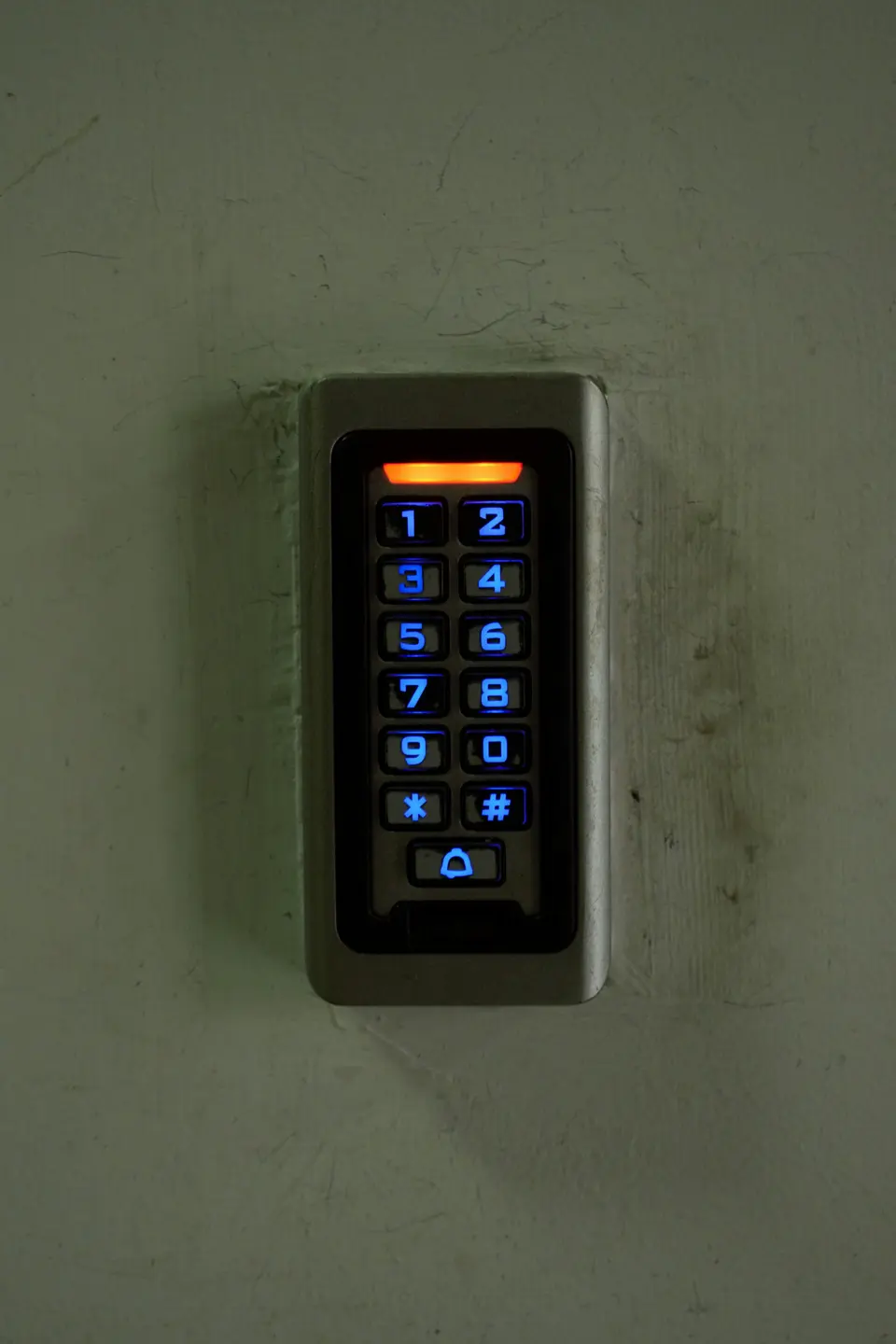
Security advice has two bad modes.
Mode one: ignore everything and reuse the same password until disaster taps you on the shoulder.
Mode two: turn your life into a spy movie because a stranger online scared you with a 4,000-word thread.
Skip both.
Most people do not need security as a hobby.
They need a boring setup that removes the dumbest risks.
That setup is smaller than you think.
The stack
Start here:
- Password manager.
- MFA on important accounts.
- Device lock.
- Software updates.
- Backups.
- A little phishing suspicion.
That is it.
Not glamorous.
Not dramatic.
Very useful.
CISA’s basic public guidance points in the same direction: use strong passwords, use a password manager, turn on multifactor authentication, update software, and watch for phishing.
The boring advice is boring because it works.
Use a password manager
The move: Put your passwords in a reputable password manager and stop reusing them.
Why: Reused passwords are how one old account turns into five new problems.
Do this now: Pick one manager, create a strong master password, and move your email account first.
Do not start by migrating every login you have ever made since 2009.
That is how simple tasks become archaeology.
Start with:
- banking
- work accounts
- cloud storage
- domains
- social accounts
- password manager account itself
The best password manager is the one you will actually use.
Use a well-known option with good security practices, solid device support, and export options. If your whole life is on Apple devices, the built-in password tools may be enough. If you work across platforms or share logins with a team, use a dedicated manager.
Do not let perfect become the reason you keep using the same password everywhere.
That is not idealism.
That is just a breach waiting for an invitation.
Turn on MFA where it matters
The move: Turn on multifactor authentication for the accounts that can ruin your week.
Start with:
- password manager
- banking
- payment apps
- domain registrar
- cloud storage
- work admin accounts
Why: A password alone is too fragile for important doors.
Do this now: Turn on MFA for email today.
Email is the reset button for your digital life.
If someone owns your inbox, they can often reset everything else.
Use an authenticator app or passkey when available. SMS is better than nothing, but it is not the strongest option.
Save backup codes somewhere safe.
Actually safe.
Not in a screenshot called backup-codes-final-final.png sitting in your camera roll.
Lock your devices
The move: Use a device passcode, biometric lock, and auto-lock timer.
Why: A lot of security failure is not cinematic. It is someone opening a laptop you left open while you are away from the table.
Do this now: Set your laptop and phone to lock quickly.
Then stop leaving them open in public places.
Yes, this is obvious.
Obvious is good.
Obvious keeps working after your brain is tired.
Update the boring stuff
The move: Turn on automatic updates for your operating system, browser, and main apps.
Why: Old software keeps old holes.
Do this now: Check updates on:
- phone
- laptop
- browser
- password manager
- messaging app
- banking app
You do not need to read every security bulletin.
You need to stop running ancient software because “I’ll do it later” became a lifestyle.
Back up what would hurt to lose
The move: Back up important files somewhere separate from the device.
Why: Security is not only about people breaking in. It is also about devices dying, files getting deleted, and accounts getting locked.
Do this now: Pick your must-not-lose folder and make sure it exists in at least two places.
For freelancers, that means:
- client files
- contracts
- invoices
- tax documents
- project assets
- domain and hosting details
If you run a solo business, your backup plan is not “I think Google Drive has it.”
Check.
Be suspicious at the right moments
You do not need to suspect every email of being a criminal masterpiece.
You do need to slow down when a message asks you to:
- log in
- pay
- reset a password
- open an attachment
- share a code
- move money
- rush
The move: When the message creates urgency, leave the message and open the site yourself.
Why: Clicking from the message is the trap door.
Do this now: If your bank emails you, do not click the link. Open the app or type the site address yourself.
This one habit prevents a shocking amount of nonsense.
The tools people overbuy
Security tools are a subscription playground now.
Be careful.
You probably do not need:
- five dark-web alert services
- a VPN for every normal moment
- a browser full of security extensions you do not understand
- encrypted apps you force on people who will never use them
- a dashboard that rates your life like a video game
Some of these tools are useful in specific situations.
But if you have not fixed passwords and MFA yet, you are decorating the roof while the front door is open.
For the broader “free tool is not always free” problem, read the hidden cost of free tools.
About VPNs
A VPN can be useful.
It is not invisibility.
It does not make bad passwords safe.
It does not stop you from typing credentials into a fake site.
It mostly changes who can see parts of your traffic path. That can matter on public WiFi, when traveling, or in specific work situations.
The move: Use a VPN if your threat model needs it. Do not buy one because a YouTuber whispered “hackers” over stock footage.
Why: Security tools should match actual risk.
Start with the basics first.
The freelancer version
If clients trust you with files, logins, drafts, assets, or private information, raise the floor.
Minimum setup:
- password manager
- unique passwords
- MFA on work accounts
- separate client folders
- encrypted device storage if available
- backups
- clear rule for client credentials
The move: Never ask a client to send passwords in plain chat or email.
Why: It trains both of you into bad practice.
Use a password manager’s sharing feature, a temporary secret tool, or the client’s own access system.
If your work has serious compliance or legal requirements, get professional advice. A blog post is not your security policy.
The 30-minute setup
Do this today:
- Create or open your password manager.
- Secure your email account.
- Turn on MFA for email.
- Save backup codes.
- Move banking and payment passwords.
- Turn on automatic updates.
- Confirm your important files are backed up.
That is a real upgrade.
Not a perfect setup.
A real one.
The bottom line
Security should make your life quieter.
Not weirder.
Not more dramatic.
Quieter.
Use a password manager.
Turn on MFA.
Update your devices.
Back up important files.
Stop clicking urgent links like they are harmless.
Then go live your life.
The goal is not paranoia.
The goal is fewer easy ways for your week to catch fire.
If you like tool consolidation, apps that replace five other apps has the same spirit: fewer tools, clearer jobs, less background anxiety.
Advertisement