Productivity
Pocket-Sized Productivity: 7 Phone Settings That Actually Help
Your phone ships with productivity features already built in. Most of us just ignore them. Here's what actually works when you flip the switch.
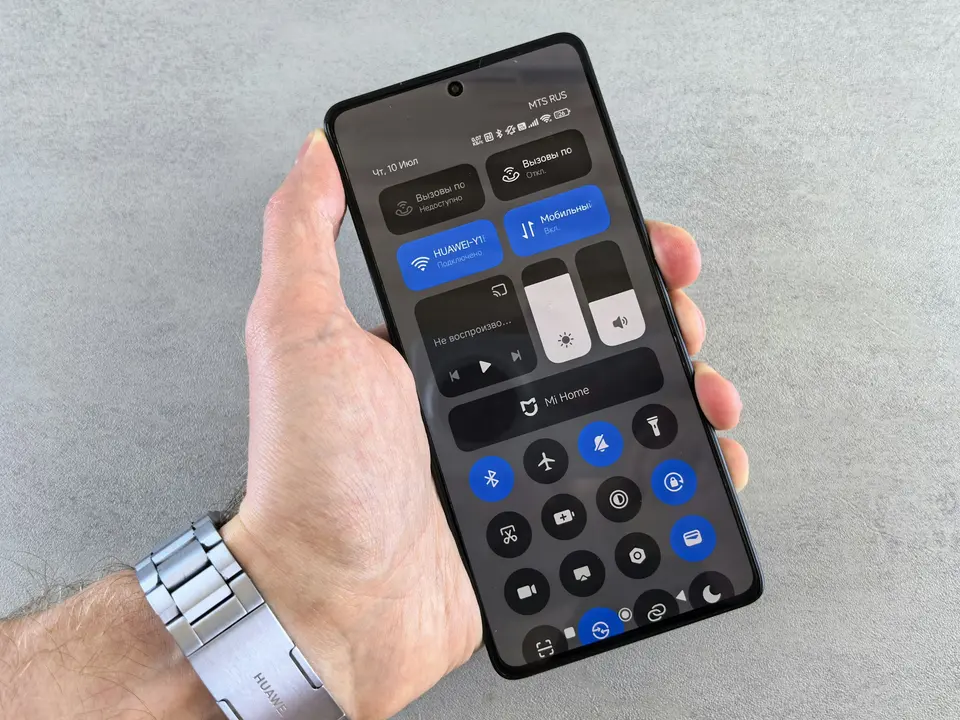
Your phone is not neutral.
It is either set up to protect your attention or sell tiny slices of it all day.
Most people try to fix this by downloading another productivity app.
Wrong first move.
Open Settings.
The boring stuff is where the power is.
These seven phone settings do more for focus than another shiny app with a calming logo.
1. Schedule Focus Mode Like It Is A Meeting
Do not turn Focus Mode on only when you remember.
You will not remember.
The move: Set automatic focus windows.
Use one for:
- First work block
- Deep work
- Evening shutdown
- Sleep
Your phone should know when you are unavailable before the world starts asking.
If you work better with layers, pair this with focus tools for scattered brains. But start with the built-in switch first. Do not buy focus before you have turned on quiet.
2. Kill Notification Badges
Those red numbers are not information.
They are open loops with a paint job.
The move: Turn off badges for email, chat, social media, shopping apps, news apps, and anything else that uses guilt as a user interface.
You can still check the apps.
You just stop letting them scream from the home screen.
If something is truly urgent, it can earn a sound, call, or direct alert.
Everything else can wait in line.
3. Move Social Apps Off The Home Screen
You do not need heroic discipline.
You need one extra tap.
The move: Remove social apps from the home screen.
Put them in a folder.
Put that folder on the last screen.
Better yet, use search when you actually mean to open them.
That tiny delay gives your brain one clean question:
Did I come here for something, or am I just scratching the glass?
If the answer is ugly, close it.
4. Turn On Grayscale When You Are Sliding
Color is part of the hook.
Not the whole hook. But enough.
The move: Add grayscale to your accessibility shortcut.
Use it during work blocks, late nights, or any stretch where your phone keeps winning the argument.
The point is not to make your phone miserable forever.
The point is to make cheap scrolling less delicious when you are most vulnerable.
If you want the bigger philosophy, the digital minimalism starter pack is the deeper reset. This setting is the two-minute version.
5. Batch Notifications Instead Of Letting Them Drip
Constant notifications train you to live on the leash.
Yes, even the tiny ones.
The move: Send low-importance alerts into a scheduled summary or turn them off entirely.
Good candidates:
- News
- Shopping
- Food delivery
- Social media
- Fitness streaks
- Random app updates
Bad candidates:
- Family
- Security alerts
- Money alerts
- Actual work emergencies
Make the phone prove it deserves your attention.
Most apps do not.
6. Put Sleep Mode On Rails
Do not negotiate with your phone at bedtime.
You will lose because it has infinite content and you have one tired nervous system.
The move: Schedule Sleep Mode with a dim screen, quiet notifications, and fewer visible apps.
Then let it start before you think you need it.
If you sleep at 11, do not start the wind-down at 10:58.
Start earlier.
Give your brain a ramp, not a cliff.
7. Make The Home Screen Boring
Your home screen should not be a casino lobby.
It should be a tool belt.
Keep only:
- Calendar
- Notes
- Maps
- Camera
- Music or audio
- One messaging app, if needed
- One task app, if you actually use it
Everything else can live elsewhere.
The home screen is the front door to your attention.
Stop leaving snacks there for your worst impulses.
The Rule
Do not ask your phone to make you a better person.
Ask it to make the bad move slightly harder and the good move slightly easier.
That is enough.
Set the rails once.
Then stop fiddling.
If you want to go further without moving into a cave, read the minimalist phone setup.
But do these seven settings first.
No new app.
No new system.
Just fewer openings for your attention to leak out.
Advertisement