Tools & Resources
Starter Pack: Automating Your Life Without Becoming a Robot
Personal automation should remove tiny annoyances, not turn your life into a dashboard. Start with the boring stuff.
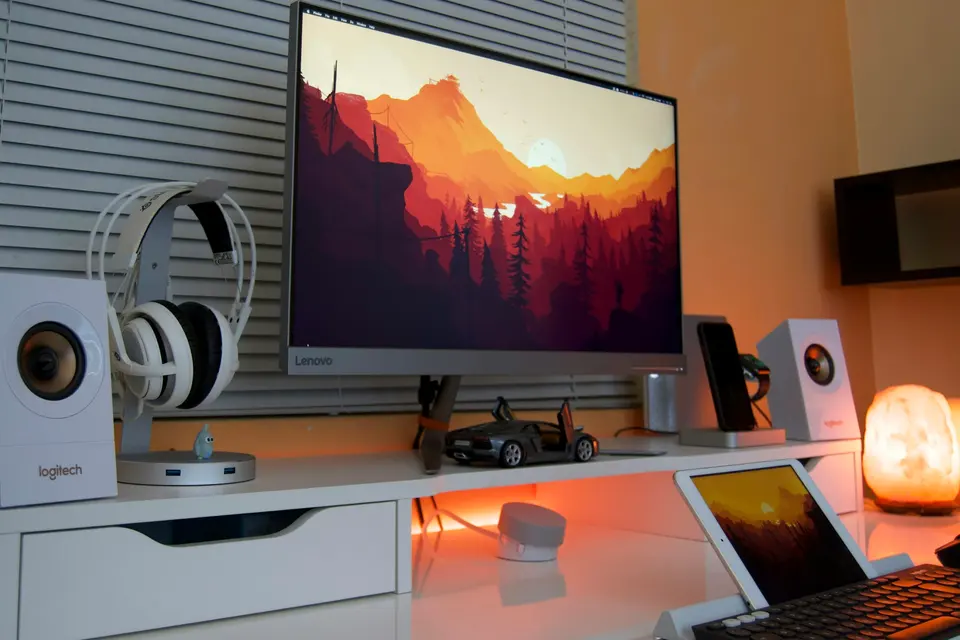
Personal automation gets weird fast.
One minute you want your phone to go quiet during work.
Twenty minutes later you are naming a 47-step workflow that syncs your mood, calendar, grocery list, and self-worth.
Stop.
The goal is not to automate your life.
The goal is to remove tiny annoyances that keep stealing attention.
Start With One Annoyance
Do not build a system.
Fix a snag.
Ask:
- What do I do every day that is mostly the same?
- What do I forget every week?
- What distracts me at the same time every day?
- What do I type over and over?
Pick one.
One is the correct number.
If you try to automate your whole life in a weekend, congratulations, you found a new way to procrastinate.
Set Phone Boundaries First
Your phone already has enough automation for a useful start.
Use the boring features.
- Do Not Disturb on a schedule. Not just at night. Set it for your focus hours during the day. Mine kicks in from 9-11am and again from 2-4pm. No willpower required.
- Auto-replies for focused time. “I’m heads-down right now. I’ll reply after 4.” Less awkward than going silent on everyone.
- Morning shortcut. Weather, first calendar item, and the one task that matters. Not a life dashboard. Just enough to avoid opening five apps.
- Location reminders. “Remind me to buy soap when I reach the store” beats trusting your heroic memory.
If this sounds basic, good. Basic is the point. I covered more phone-level tweaks in pocket-sized productivity: 7 phone settings that actually help - start there if you haven’t already.
Stop Typing The Same Thing Twice
Text expansion is tiny magic.
You type a short trigger. It expands into the full thing.
Use it for:
- My standard client onboarding email
- Invoice follow-up messages
- My mailing address
- Common links
- FAQ answers
- Markdown blocks
This is not dramatic.
That is why it works.
You are not trying to impress a productivity forum. You are refusing to type your address for the thousandth time.
Clean The Downloads Swamp
Your Downloads folder is probably a crime scene.
Fix that before you wire twelve apps together.
Create rules:
- PDFs go to Documents
- Screenshots go to Screenshots
- Invoices go to Invoices
- Old installers go to trash after a delay
You can do this with built-in tools, folders, or small scripts.
If you want the script route, read simple scripts to automate your boring computer tasks. But you do not need to touch code first.
Connect Apps Only When The Pain Is Real
App automation is useful.
It is also where people build little machines that need more care than the task they replaced.
Use app connections for clear cases:
- Save email attachments from one sender to one folder
- Send a reminder before client calls
- Add form entries to a spreadsheet
- Create a task when a paid invoice lands
Notice the pattern.
One trigger. One result.
No pile of conditions nobody will maintain.
The Stop Rule
I have wasted time automating tasks that did not deserve the honor.
So here is the rule:
If setup takes longer than doing the task by hand for three months, skip it.
Some things are faster to just do.
That is not failure. That is math.
If you are the kind of person who turns every improvement into a side quest, read the trap of optimization. You may need the brakes more than the engine.
Your Starter Pack
Do this over a week:
- Schedule Do Not Disturb.
- Add five saved replies.
- Make one Downloads cleanup rule.
- Automate one app-to-app annoyance.
- Delete any automation you do not trust.
That last one matters.
Automation that makes you nervous is not saving you time.
It is just outsourcing anxiety to a button.
Advertisement